TABS
- Export container “Not Ready” on TABS
- Gatepass Errors in Truck Manifesting
- Holds in booking an import reefer container in TABS
- How to resolve errors during Truck Manifest creation in TABS
- How to submit requirements for “Expanded Withholding Tax (EWT)” option in TABS
- How to submit requirements for “ZERO VAT” option in TABS
- How to top up your TABS points
- How to use TBA slot in Truck Manifesting
- Import Container "Not Ready" in TABS
- Truck Manifesting User Guides
How to edit the details of your submitted truck manifest
There are two ways to go about editing the details of your submitted Truck Manifest.
1. Cancel/delete the submitted Truck Manifest and create a new one with the updated details
· Log in to your TABS account
· On the left-side menu, click on MANIFEST then TRUCK MANIFEST LIST
· Filter the date (Note: You will also be able to input the truck plate number or container number before searching)
· Look for the Manifest ID you need to cancel
· On the Actions column, click on CANCEL
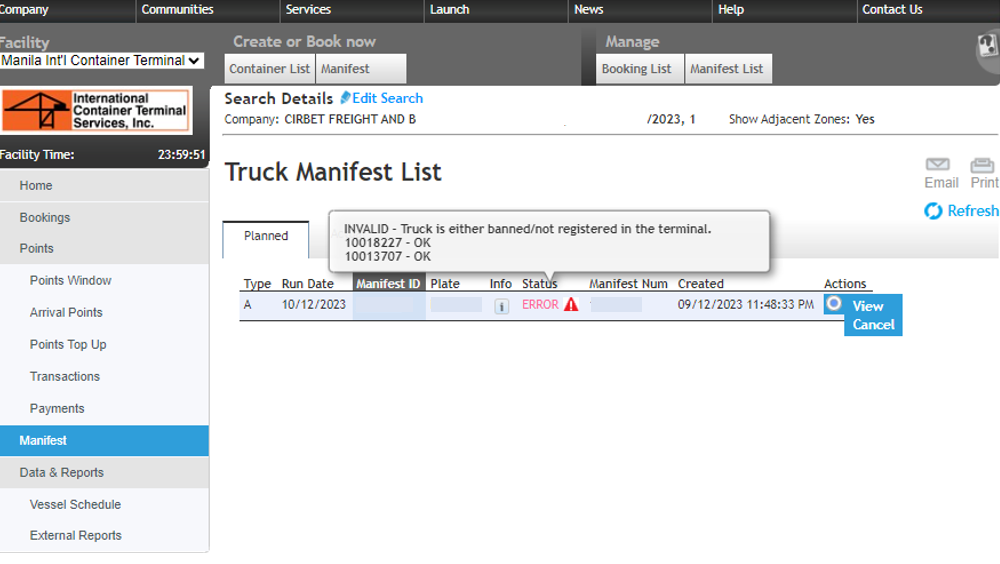
NOTE: The cancellation/deletion of the Truck Manifest will NOT affect your confirmed booking slot. However, the new Truck Manifest MUST be submitted before the truck arrives at the terminal to avoid any issues upon entry.
Sample scenario: If the booking is Zone 13, you can ONLY remanifest before the zone ends.
2. Use the Truck Manifest Editor to edit your submitted manifest. This is helpful, especially for truckers who did not create the Truck Manifest using their own TABS login (any revisions made will be sent to the email of the TABS account holder who created the original Truck Manifest).
NOTE: You will only be able to edit the details on your Truck Manifest if it has an “OK” status and for up to 12 hours from the booking appointment time.
Process on how to edit your manifest in Truck Manifest Editor:
· Go to https://tme.mict.com.ph/TruckManifestEditor and login. If you don’t have an account yet, you may click on REGISTER AS NEW USER and fill in the required details to proceed.

· On the Truck Manifest Editor home page, click on TRUCK MANIFEST SEARCH.

· Input the ALL the necessary details and click on SEARCH. This will only work if you are able to input ALL the container numbers associated with the Truck Manifest. For example, if there are 2x20ft containers in your booking, then you must enter both containers in the fields provided.
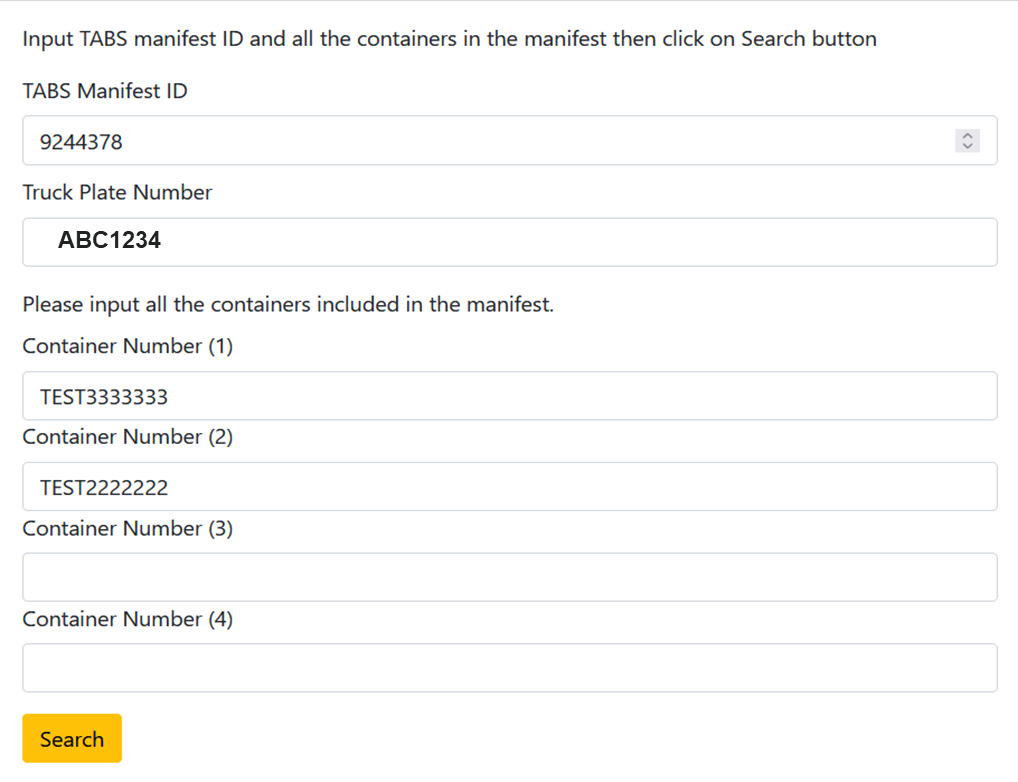
· Double-check the summary of the inputted details and click on PROCEED TO UPDATE to edit the details on your manifest.
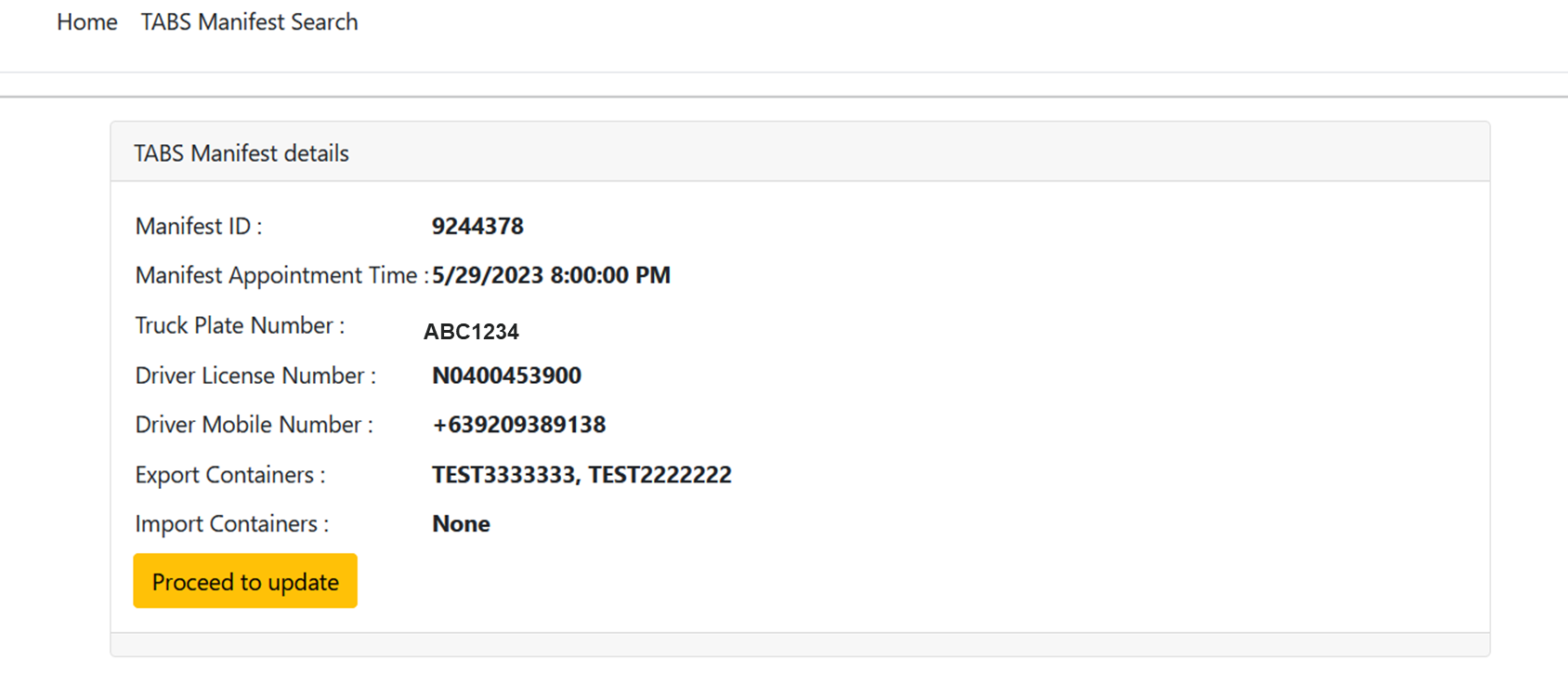
NOTES: Please allow 10-15mins after Truck Manifest submission before editing the details in the Truck Manifest Editor.
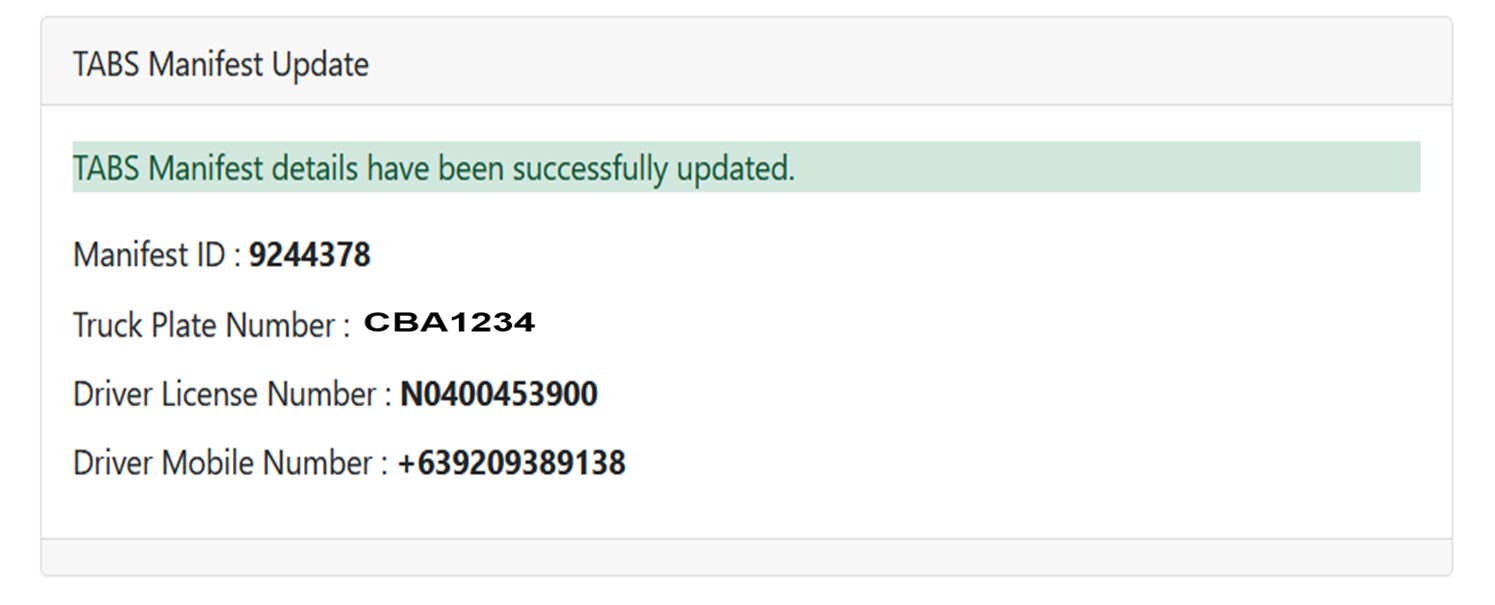
· To edit, input the new details in the text box/es then click on UPDATE. In the example below, we are editing just the truck plate number.
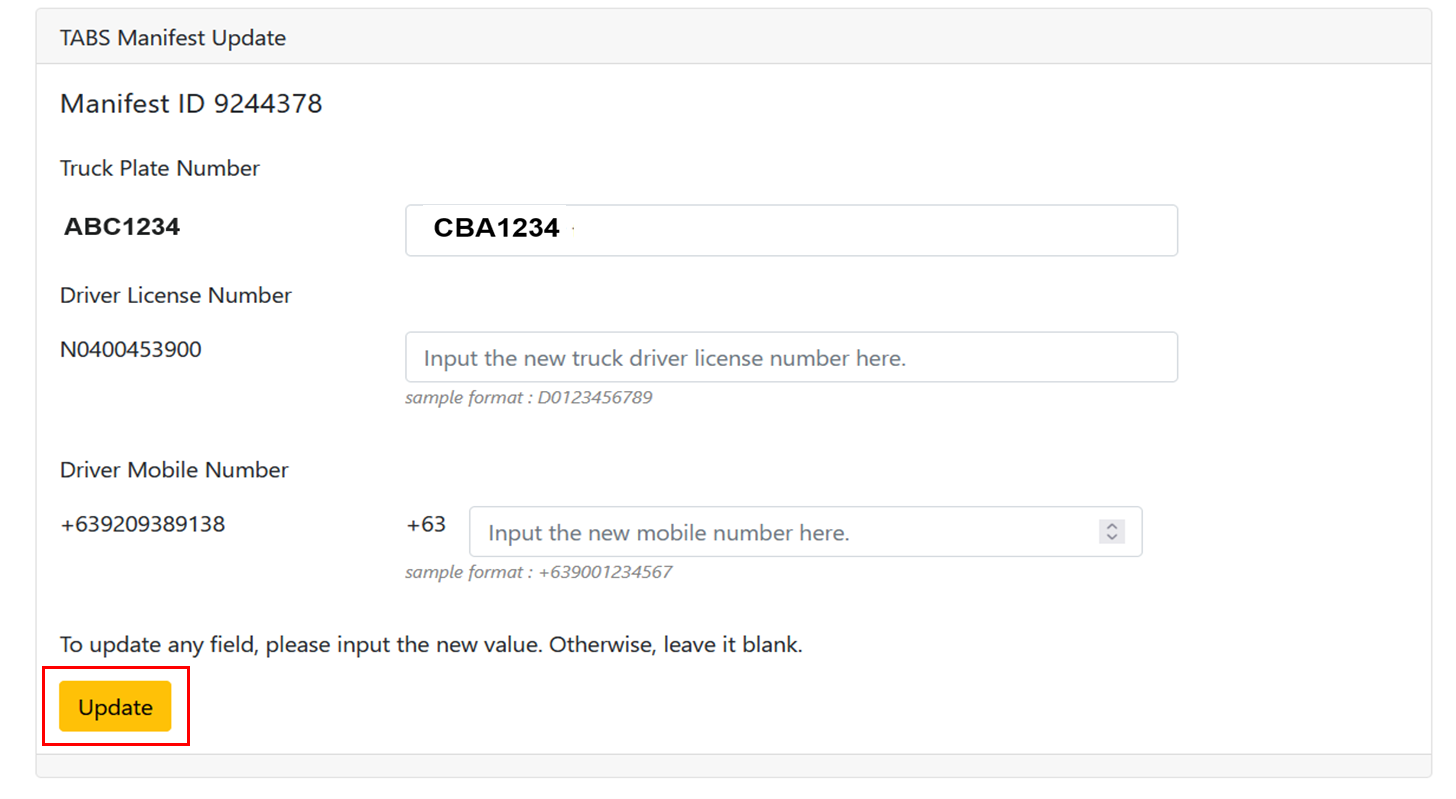
· A banner will appear to confirm that the changes you made have been successfully updated in the system.
REMEMBER:
• To input the Truck Plate and Driver’s License number correctly, they should be comprised of alphanumeric characters only, without any spaces, and should not have any special characters.
• Your PTO/TAPPP must be valid in our system
• The Truck Plate and Driver’s License number should be valid and not subject to any holds in the terminal
• Both driver and truck should come from the same trucking company.
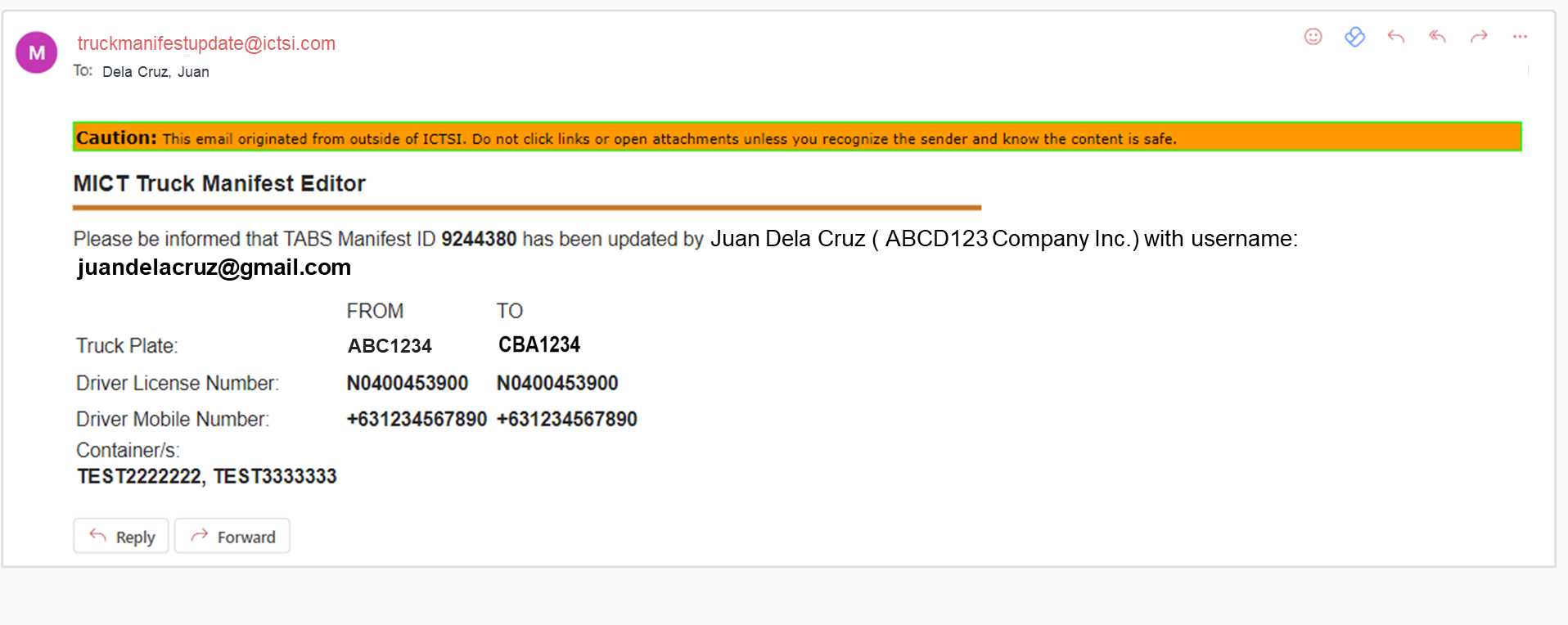
EVERY UPDATE made in the Truck Manifest Editor will trigger an email notification that will be sent to the registered email address of the TABS account holder that created the original Truck Manifest. The email notification will inform them of the update that was made to a specific Manifest ID.
REFERENCES:
1. Truck Manifest Editor - https://tme.mict.com.ph/TruckManifestEditor
2. Truck Manifest Editor User Guide/Materials - Truck Manifest Editor