TABS
- Export container “Not Ready” on TABS
- Gatepass Errors in Truck Manifesting
- Holds in booking an import reefer container in TABS
- How to edit the details of your submitted truck manifest
- How to resolve errors during Truck Manifest creation in TABS
- How to submit requirements for “Expanded Withholding Tax (EWT)” option in TABS
- How to submit requirements for “ZERO VAT” option in TABS
- How to use TBA slot in Truck Manifesting
- Import Container "Not Ready" in TABS
- Truck Manifesting User Guides
How to top up your TABS points
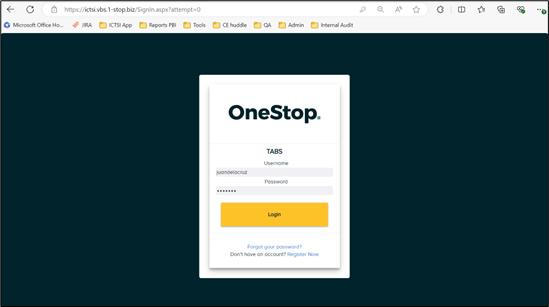
1. Login to your TABS account at VBS (1-stop.biz).
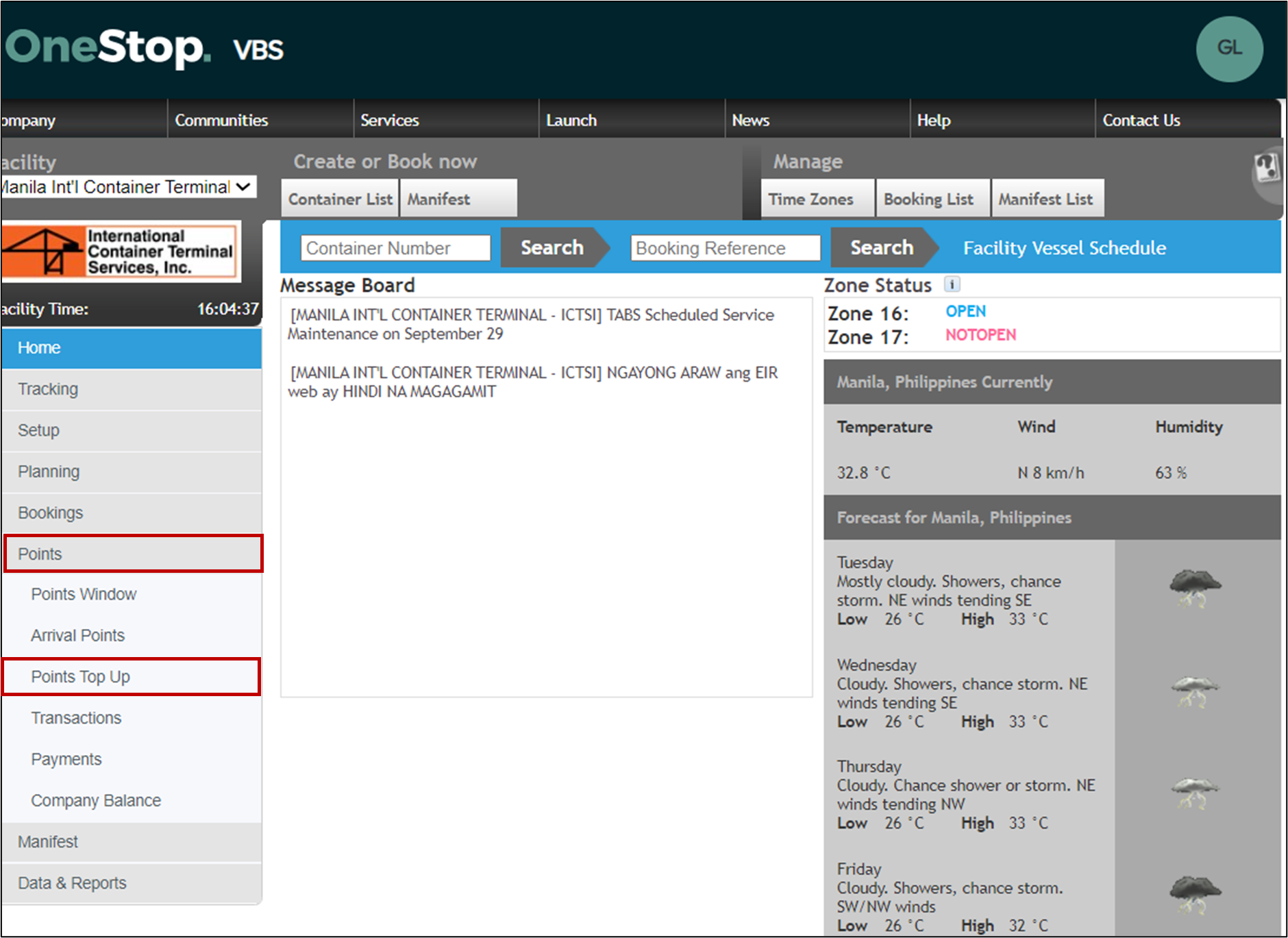
2. On the side menu, click on POINTS then POINTS TOP UP.
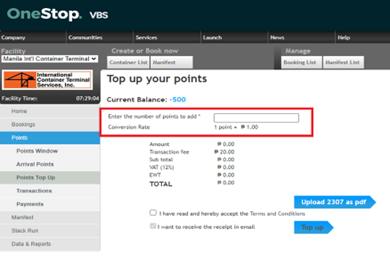
3. Input the number of points (amount) to add to your balance then upload 2307 (if applicable). Once done, click on TOP UP.
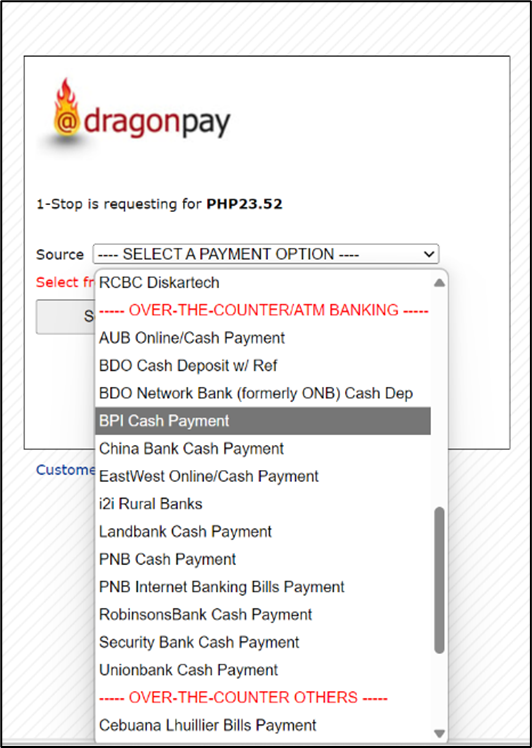
4. You will be redirected to Dragonpay. Select your preferred payment channel from the drop-down list.

A. See below procedures for the ONLINE BANKING/E-WALLET payment method:
Partner Banks
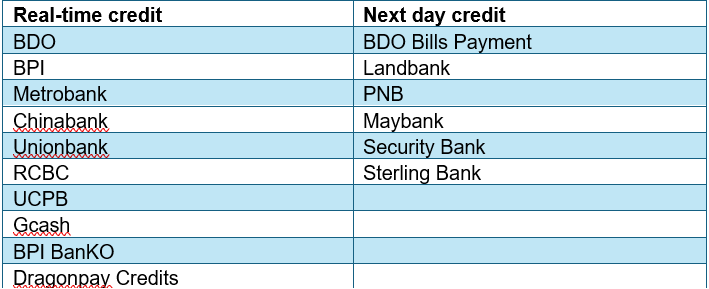
· On the Dragonpay screen, select your preferred bank or finance source from the list under the ONLINE BANKING / E-WALLET group.
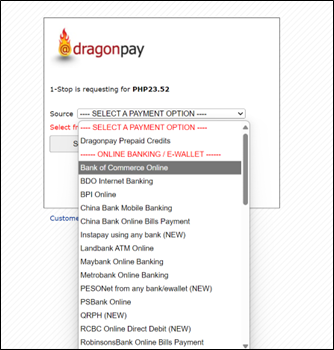
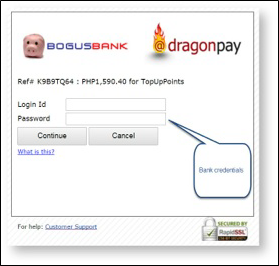
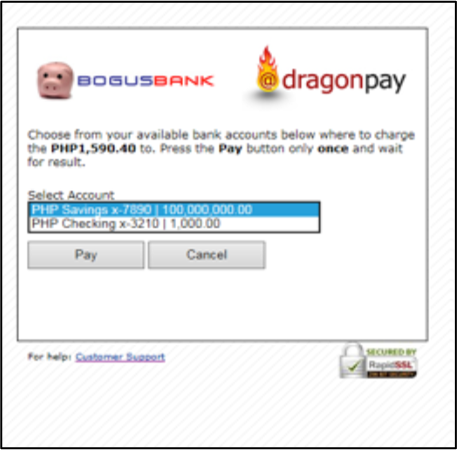
· Login to your online banking account, make the appropriate account selection, and click on PAY to complete the transaction. Users will be redirected back to the TABS page.
· In TABS, go to POINTS > PAYMENT then input the transaction ID to check if the points have been reflected in your account. You may click REFRESH under the action column in case it has not been reflected yet.
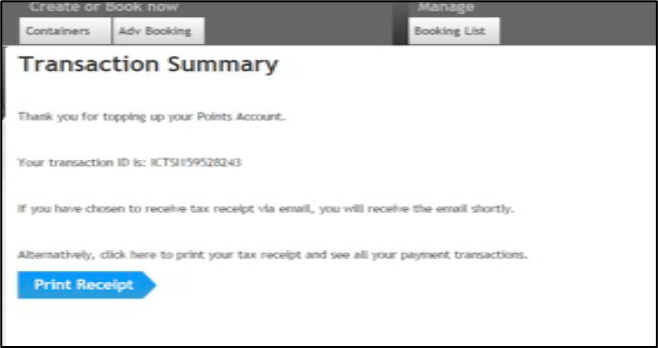
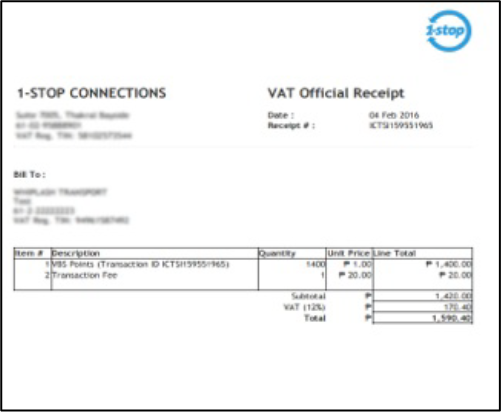
· Upon successful transaction, click PRINT RECEIPT to get a copy of the official receipt.
B. Should you wish to pay in CASH, see below procedure:
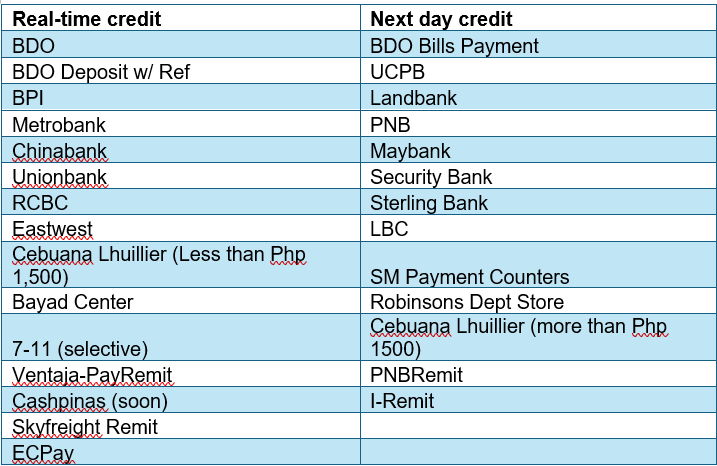
Partner Banks: Over the counter
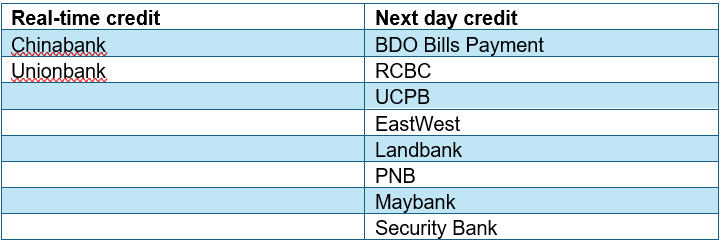
Partner Banks: ATM
· On the Dragonpay screen, select your preferred payment channel under the OVER-THE-COUNTER group.
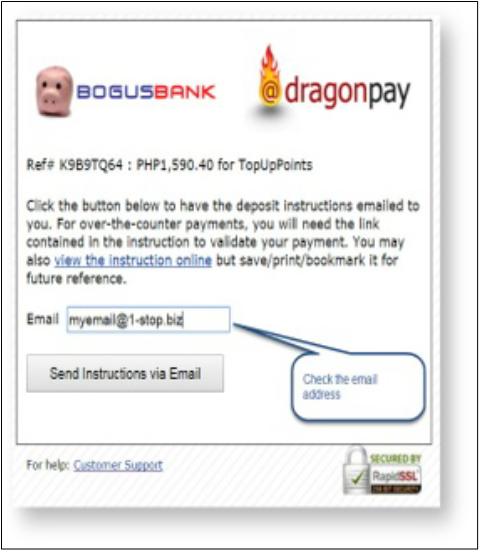
· Enter your correct and current email address and click SEND INSTRUCTIONS VIA EMAIL.
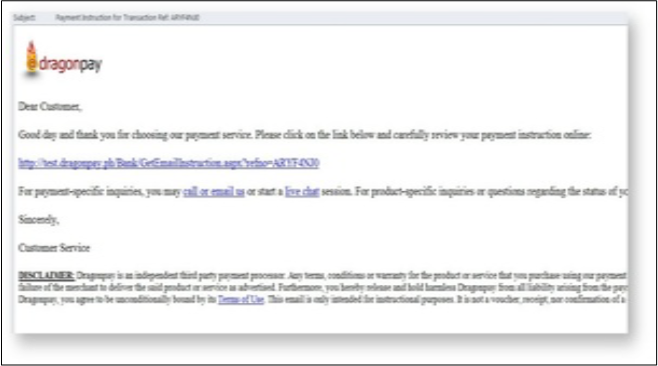
5. Users will receive an email from DragonPay. Click the link on the email body then it will direct you to payment instructions to review the details.
6. Points will be added to the TABS user’s account after the payment confirmation.
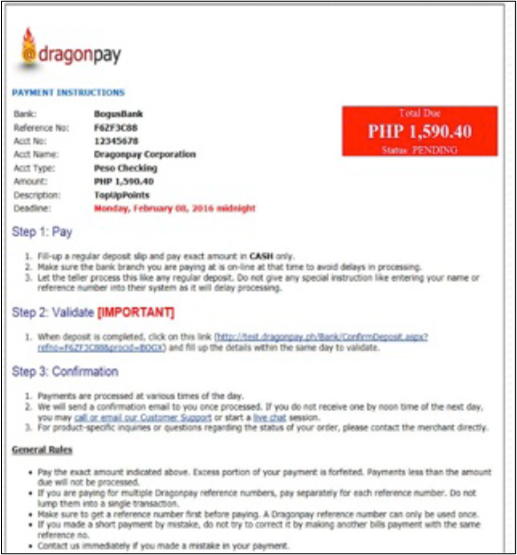
NOTE: Please read the Dragonpay instructions thoroughly as there are payment channels where payment validation is necessary. See sample photo below: